
Apple Intelligence Arrives: What AI on Every Apple Device Actually Means for Your Business
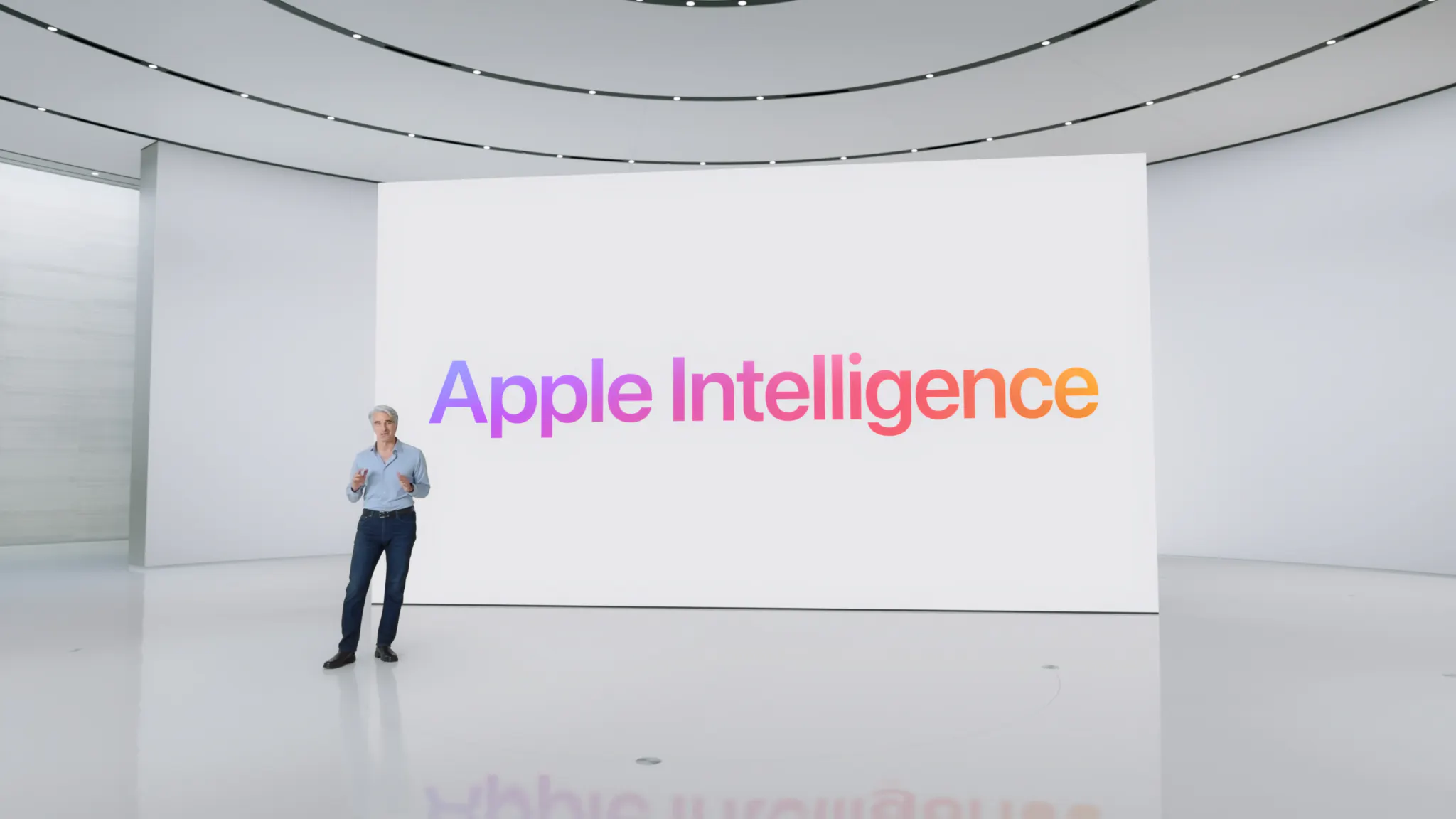
Apple does not use the phrase "artificial intelligence" if it can avoid it. They call it Apple Intelligence, and they have been careful to frame it as a set of practical tools rather than a futuristic platform. For once, that restraint is refreshing. The AI features built into iOS 18 and macOS Sequoia are not trying to replace your judgement. They are trying to save you the fifteen minutes you spend every morning wrestling with your inbox.
If your business runs on iPhones, iPads, or Macs, here is an honest look at what Apple Intelligence actually does, which features are worth turning on, and which ones you can safely ignore.
What Apple Intelligence Actually Is
Apple Intelligence is a suite of AI features built directly into Apple devices. Unlike ChatGPT or Google Gemini, which run on distant servers, the majority of Apple Intelligence processing happens on your device. Apple calls this "on-device processing," and it matters for two reasons.
The first reason is privacy. Your emails, documents, and messages are not being sent to a data centre to be processed and potentially used to train a model. For business owners handling client information, quotes, or sensitive communications, this is a genuine advantage over some competing AI tools.
The second reason is speed. On-device processing means many features work instantly and do not require an internet connection. There are some features (powered by what Apple calls Private Cloud Compute) that do go to Apple's servers, but Apple has made strong claims about the privacy architecture there, and independent researchers have largely backed those claims.
Apple Intelligence requires an iPhone 15 Pro or later, or any iPhone 16 model, and any Mac or iPad with an M1 chip or later. If your devices are older than that, these features will not be available.
Writing Tools: The Feature You Will Use Every Day
The most practically useful Apple Intelligence feature for small business owners is Writing Tools, and it works almost everywhere you type: Mail, Notes, Pages, WhatsApp, and most third-party apps.
Select any text you have written, press the Writing Tools button (or right-click), and you can choose to rewrite it, make it more formal or more casual, summarise it, or proofread it. This is not a gimmick. If you send a lot of emails, this saves real time.
The Rewrite option is genuinely good at taking a rambling paragraph and turning it into something concise. The Proofread function catches errors that spell-check misses because it understands context, not just spelling. The Summarise function works well on long documents: paste in a supplier's terms and conditions and ask for a summary, and you will get the key points in a few sentences.
One honest caveat: the tone options (more formal, more casual, more professional) can occasionally produce results that sound a bit generic. Read what it gives you before you hit send. Think of it as a first draft assistant, not an autopilot.
Smart Reply and Priority Mail
Apple Intelligence adds two features to the Mail app that are worth knowing about.
Smart Reply suggests short responses to emails based on the content of the message. If a client asks whether you are available on Thursday, Smart Reply will offer "Yes, Thursday works" and "Sorry, I'm not available Thursday" as one-tap options. For high-volume inboxes, this is a genuine time-saver.
Priority Messages is more interesting. Apple Intelligence reads your inbox and surfaces emails that it judges to be time-sensitive or important at the top of your view, ahead of newsletters and non-urgent messages. For busy periods when your inbox is out of control, this works surprisingly well. It is not perfect and occasionally misjudges what is urgent, but it gets things right more often than not.
Priority Notifications: Cutting Through the Noise
On the lock screen and in Notification Centre, Apple Intelligence now stacks and summarises notifications from the same app. Instead of seeing fifteen individual Instagram notifications, you see a one-line summary. Instead of seeing a string of messages from a group chat, you see the gist.
For business owners who carry their phone with them all day, this is one of the features that quietly makes life better without announcing itself. You stop missing the one important message buried under a pile of newsletters.
Photo Cleanup: Useful, but Not Your Priority
The Clean Up tool in Photos uses AI to remove unwanted objects from images. You tap on something in a photo, like a rubbish bin in the background of a shot you want to use on your website, and it removes it.
This is genuinely impressive when it works. It does not always work cleanly, particularly on complex backgrounds, and it is not a replacement for proper product photography. For quickly tidying up a photo for a social media post, though, it is a convenient tool that used to require a separate app or a designer.
The Privacy Angle Is a Real Business Advantage
We mentioned on-device processing above, and it is worth returning to because it matters for businesses that handle client data. If you are using AI writing tools to draft emails that contain client names, financial figures, or health information, where that data goes is not a trivial question.
With Apple Intelligence, the processing for most features stays on your device. When it does need to go to Apple's servers for more complex tasks, Apple uses what they describe as a sealed privacy architecture with no data retention. That is a meaningfully different model from some AI assistants that use your inputs to improve their models.
This does not mean Apple Intelligence is appropriate for every regulated industry without further consideration. If your business has strict data handling requirements, talk to your IT provider. But for most Perth small businesses, the on-device model is a privacy plus compared to some alternatives.
What to Turn On First
If you have a compatible device, go to Settings, then Apple Intelligence and Siri, and turn it on if it is not already enabled. The features that are worth prioritising first are Writing Tools (available immediately across your apps), Priority Notifications (set and forget), and the Mail summaries and Smart Reply in the Mail app.
The more experimental features, like Image Playground (AI-generated images) and Genmoji (custom emoji), are fun but not particularly relevant to running a business. Save them for when you have a spare moment and want to see what the fuss is about.
Apple Intelligence is not going to transform your business overnight. What it will do is quietly save you time on small repetitive tasks: editing an email, finding the point of a long message, clearing your notification pile. Over the course of a week, those minutes add up.
Six months on, the picture got more complicated. We went back and tested how Apple Intelligence actually held up in day-to-day use in Apple Intelligence, Six Months On.