Microsoft 365 Passkeys Are Rolling Out. What Perth Businesses Need to Do (and What to Ignore)
If your team signs into Microsoft 365 with a text message code, you are going to start seeing a new prompt soon. Microsoft is making passkeys the default login method for business accounts, and it is quietly retiring the free SMS and voice call codes a lot of small businesses still rely on.
That is a good change for security. It is also the sort of change that lands as a confusing pop-up on a Monday morning, right when someone is trying to get into email and pay a supplier. And because scammers never miss a Microsoft announcement, there is already a wave of fake “IT helpdesk” calls pretending to help you set a passkey up.
Here is the straight version: what is actually changing, what a passkey is in plain English, what to do before February 2027, and how to tell a real Microsoft prompt from someone fishing for your login.
You may have seen this already
If you are the person who "does the Microsoft stuff" for the business, you may have had a Microsoft 365 Message Center notice or admin email about passkeys and SMS codes being retired. That is the admin heads-up.
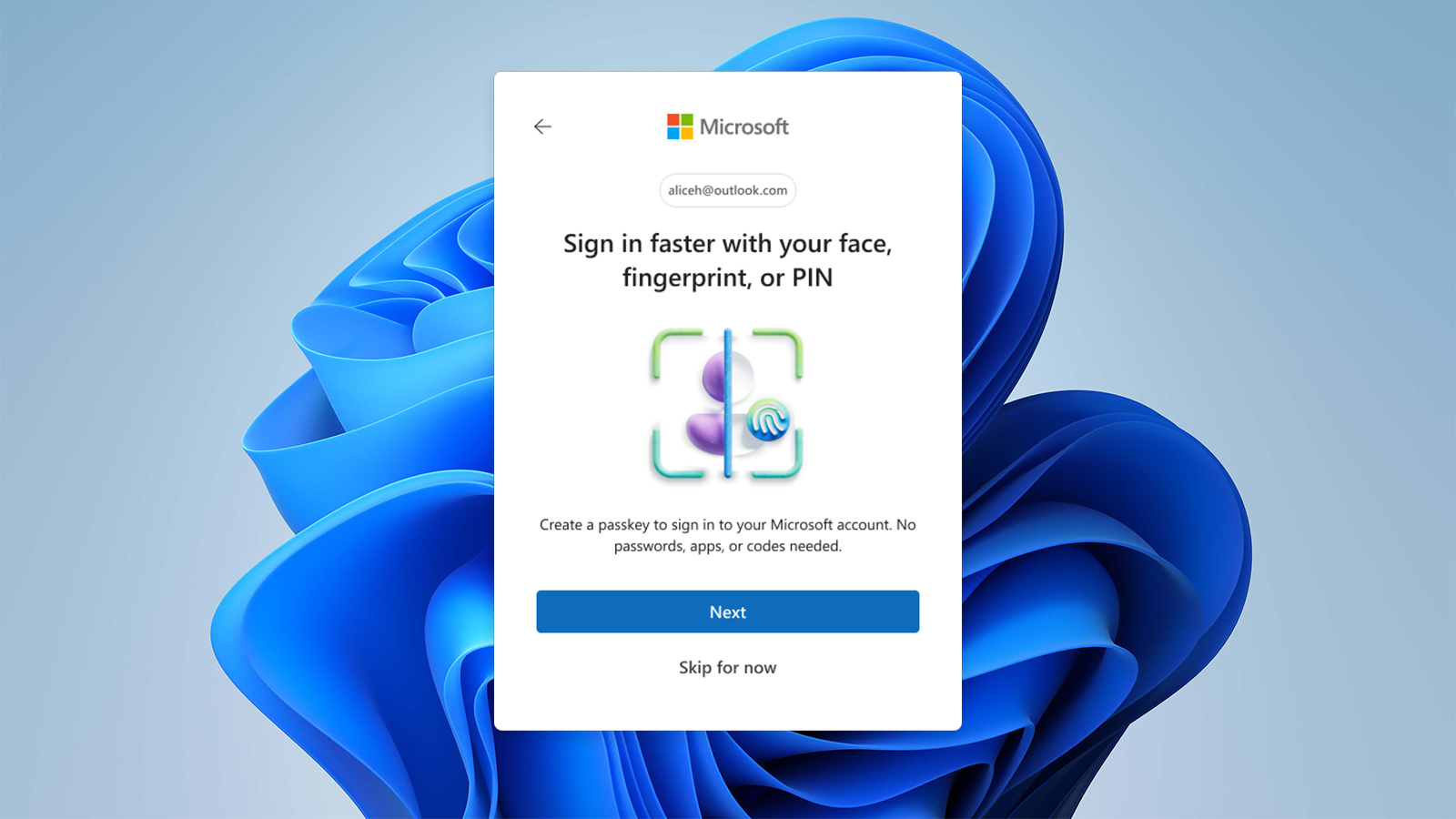
For everyone else on the team, it usually does not arrive as a separate marketing email. It shows up as a prompt after they sign in and finish MFA, asking them to set up a passkey. It looks roughly like this (Microsoft's own example of the registration campaign screen):
If someone on your team forwards you a screenshot of a blue Microsoft screen saying to create a passkey, that is often the real thing. If the "help" arrives as an unexpected phone call, SMS, or a link that is not part of the normal login flow, treat it as suspicious and check against the table later in this article.
What Microsoft is changing
Two dates matter.
From 1 September 2026, Microsoft started rolling passkeys out as the default experience in Microsoft Entra ID (the identity system behind Microsoft 365). If a staff member currently uses SMS or a voice call for multi-factor authentication, they can be auto-enabled for passkeys and nudged to register one the next time they sign in. For now it is a soft nudge. You can usually snooze it.
From 1 February 2027, Microsoft stops providing its own SMS and voice authentication service. After that date, users whose only MFA method is a text or phone call will hit a blocking prompt: register a passkey before you can get into the account. There is no opt-out from that February deadline.
Authenticator-app codes (the six-digit numbers that refresh every 30 seconds) are still supported. This is specifically about Microsoft’s own text-message and phone-call delivery. Personal Microsoft accounts are not in the same boat. This is a business, enterprise, and education change.
A passkey, without the jargon
A passkey is a login method that lives on a device you already trust, usually your phone or laptop, and unlocks with your face, fingerprint, or device PIN. Instead of typing a password (or waiting for a text), you approve the sign-in on that device.
The useful bit for a small business is phishing resistance. A stolen password is useless without the device. A fake Microsoft login page cannot “receive” your passkey the way it can harvest a password and a six-digit code. That is why Microsoft is pushing this hard, and why the Australian Signals Directorate keeps pointing businesses toward stronger MFA than SMS alone.
You do not need a special USB key for day-to-day use, though hardware security keys still work for people who want them. For most Perth small teams, a phone-based passkey or Windows Hello on a work laptop is enough.
One trap: do not lock every passkey to one phone account
Here is a recovery pain we keep seeing. Someone stores their passkeys in the phone maker's built-in vault, Apple's iCloud Keychain is the usual one, then the iPhone gets compromised, lost, or the Apple ID becomes a mess to reclaim. Suddenly the passkeys that were meant to make life easier are stuck behind the same account that is broken, and unlocking Microsoft 365, banking, and everything else turns into a multi-day recovery job.
The safer pattern for a small business is separation. Keep passkeys (and passwords) in a dedicated password manager that syncs across phones and PCs, instead of tying the whole vault to one Apple ID or Google account. Options that support passkeys include NordPass, 1Password, and Bitwarden. Pick one, roll it out to the team, and treat the phone biometric as the unlock for that vault, not as the only place the keys live.
That way a stolen or locked iPhone is painful, but it is not "every login for the business died with the Apple account."
Why this matters more for small businesses than it sounds
Larger companies have IT teams watching Message Centre notices. A five-person Perth business often has one person who “does the tech,” and everyone else just wants Outlook to open.
Three practical risks show up if you ignore this until February:
- Lockouts at the worst moment. Someone only has SMS MFA set up, the soft prompts were snoozed for months, and suddenly they cannot get into email on invoice day.
- Shared or old phones. Staff who receive codes on a personal mobile that has changed numbers, or a shared office phone that nobody really owns, get messy fast once SMS is no longer Microsoft’s problem.
- Confusion that scammers love. Any new Microsoft prompt creates cover for fake ones. If your team has not been told what to expect, the first urgent-sounding call about “updating your passkey” sounds almost believable.
The scam riding along behind the rollout
Microsoft’s own security researchers have been tracking a campaign that starts with a call or message to someone’s personal phone, from a person claiming to be from the company’s IT helpdesk. The pitch is urgent: your passkey, MFA, or single sign-on needs updating right now or you will lose access.
The victim is steered to a lookalike Microsoft sign-in page, or talked into entering a code on a real Microsoft page (device-code phishing). Once the attacker has a foothold, they add their own authentication methods, then quietly pull files from SharePoint and OneDrive and mail from Exchange.
Same pattern we keep seeing locally with invoice fraud and credential grabs: urgency, a trusted brand, and a request that feels like “just IT admin.” If someone rings you about a passkey and you did not ask them to, hang up and check through a channel you already trust. Tech Hero will never cold-call you demanding a remote session to “fix your Microsoft login,” and neither will Microsoft.
| Real Microsoft change | Passkey scam |
|---|---|
| Prompt appears inside your normal Microsoft 365 sign-in | Unexpected call/SMS/Teams message from “IT” about passkeys |
| You can usually snooze it for now | “Do this immediately or you lose access” |
| No one asks you to share a code out loud or over the phone | Asks you to read out a code, click a link, or grant remote access |
| You set it up on your device, in your browser | Sends you to a lookalike site or a “support” page |
| Ends with you unlocking with Face ID / fingerprint / PIN | Ends with someone else getting into SharePoint, OneDrive, or email |
What to do this week
You do not need a project plan. You need a short checklist.
1. Find out how people actually sign in.
Ask each staff member: password only, authenticator app, text message, or something else? Anyone still on SMS or voice is on the migration path whether they know it or not.
2. Turn on an authenticator app if you have not already.
The Microsoft Authenticator app (or another TOTP app) is still a solid method and buys you calm while you roll passkeys out properly. MFA remains the closest thing to a silver bullet for stolen passwords, which is why we keep hammering it in our phishing advice for Perth small businesses.
3. Register a passkey on purpose, not under pressure, and prefer a password manager vault.
Have each person set one up on a calm afternoon from a device they actually use for work. Where you can, store work passkeys in a dedicated manager (NordPass, 1Password, Bitwarden, or similar) rather than only in Apple's or Google's built-in keychain. Phone biometrics and Windows Hello still unlock the day-to-day login, they just should not be the only copy of the keys. Do it once, properly, and the February deadline becomes a non-event.
4. Brief the team in one sentence.
“Microsoft may ask you to set up a passkey when you sign in. That is normal. Nobody from Microsoft or Tech Hero will ring you out of the blue and ask you to share a code or click a link to do it.”
5. Make sure you still have a way back in.
Have a second MFA method registered, keep recovery details current, and know which account is the admin. A single locked-out owner account is how small businesses turn a login change into a lost morning.
The takeaway
Passkeys are not a fad Microsoft invented to annoy you. They are a cleaner, harder-to-phish way to prove it is really you, and the free SMS codes a lot of teams still use have an expiry date of 1 February 2027. Soft prompts are already rolling out. The hard stop is not that far away.
Do the boring setup now, put passkeys somewhere you can recover independently of one phone brand, tell your team what a real prompt looks like, and treat any unexpected “helpdesk” call about passkeys the same way you treat a surprise invoice with new bank details: guilty until proven innocent.
If you would rather not spend an afternoon chasing MFA settings across five mailboxes, that is exactly the sort of quiet setup we do for Perth businesses. A short appointment, everyone signed in properly, and no panic when February arrives.