Windows 11's Biggest Update Yet: The New Features That Will Change How You Work
Microsoft has been steadily adding features to Windows 11 since its launch, but the late 2025 update is the most significant overhaul the operating system has received. For everyday users, many of the changes are immediately noticeable. For business owners who've been running Windows 11 without paying much attention to what's changed, there are some genuinely useful tools hiding in places you might not have looked.
Here's what's new, what it means for a working day, and how to make sure your computers are actually running the latest version.
A Start Menu That Finally Makes Sense
The Start menu has been one of Windows 11's most criticised features since launch. The original design stripped out a lot of customisation options that Windows 10 users relied on, and the pinned apps area felt rigid and cluttered.
The updated Start menu gives you substantially more control. You can now resize the pinned apps section to show more or fewer items, and the recommended section, which previously surfaced whatever Microsoft decided was relevant, can now be configured to show your recent files or switched off entirely if you'd prefer a cleaner look.
For business users, the most practical change is the ability to pin frequently used files directly to Start, not just apps. If you spend your mornings opening the same spreadsheet, proposal template, or project brief, you can now get to it in two clicks from the Start menu rather than hunting through File Explorer or your taskbar. It's a small change that adds up over a week.
Smarter Search That Understands What You Mean
Windows Search has historically been unreliable in a way that frustrated even patient users. Searching for a document you knew existed would return nothing, or bury it under a list of web results you didn't ask for.
The updated search uses AI to understand natural language queries rather than requiring you to remember exact file names. You can type something like "the quote I sent to the client last Thursday" or "the photo from the team lunch" and Windows will interpret what you mean and surface relevant results. It draws on file content, metadata, and recent activity, not just file names.
In practice, this is most useful for people with large, poorly organised file systems. If your desktop is a sea of documents with names like "Final v3 ACTUAL FINAL," natural language search can rescue you from the chaos without requiring you to reorganise everything first. It's also helpful for emails if you're using the built-in Mail app or have Outlook connected.
File Explorer Gets Genuinely Useful
File Explorer has looked largely the same since Windows 7. The 2025 update brings two changes worth knowing about.
The preview pane has been significantly improved. Previously it could display a basic preview of common file types. Now it renders a much richer preview for Office documents, PDFs, and images, including a summary of document content for longer files. You can read the key points of a Word document or check the first page of a PDF without opening the application at all.
The second change is AI tagging. Windows can now analyse files in your designated folders and apply automatic tags based on content. A folder of client contracts might be tagged by client name, document type, or date range. This is an optional feature you need to enable in File Explorer settings, and it works locally on your device rather than sending files to the cloud, which matters if you handle sensitive client information.
Multi-Monitor Work Gets Less Painful
If you work across two or more monitors, you'll appreciate the improvements to Snap Layouts. The existing snap feature, which lets you arrange windows in side-by-side configurations, now remembers your layout when you disconnect a monitor and reconnects everything in the same arrangement when you plug back in.
For anyone who docks a laptop at a desk with an external screen, this is a meaningful time-saver. Previously, reconnecting a monitor would scatter all your open windows back to the laptop screen in a jumbled pile. Now they restore to where you left them.
There are also new Snap Layout presets for ultrawide and portrait monitors, making it easier to divide screen space usefully across non-standard setups.
Phone Link for Android Users
If you use an Android phone and a Windows PC, Phone Link has become a more capable tool. The updated version supports running Android apps directly on your Windows desktop through the integration, syncing notifications in both directions, and making and receiving calls from your PC without touching your phone.
For business owners who juggle messages across SMS, WhatsApp, and phone calls while trying to work on a computer, this can meaningfully reduce the interruption cycle of constantly picking up your phone to respond to things. Not everyone will find it useful, but if your phone is constantly pulling your attention away from the screen, it's worth setting up.
How to Check You're Running the Latest Version
Many Windows 11 machines don't automatically install optional updates, which is where most of the features above live. Here's how to check.
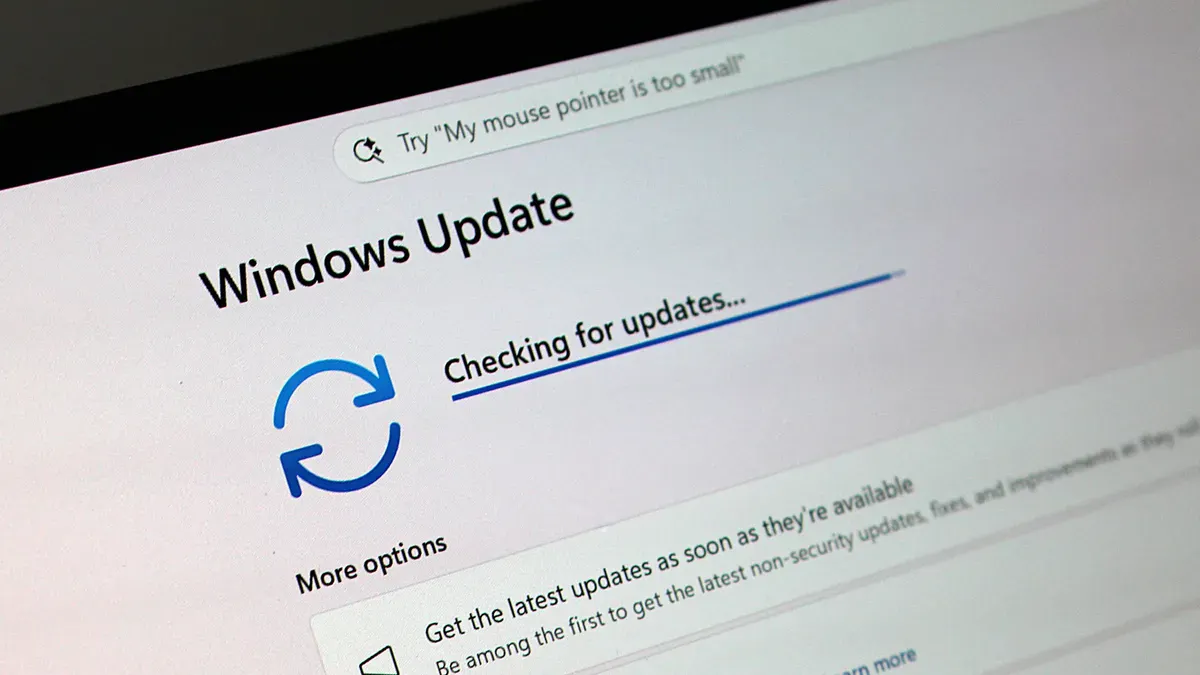
Open Settings, then go to Windows Update. If you see updates available, install them and restart. Once you're current on the main updates, look for a link that says "Advanced options" or "Optional updates." Click through and check whether there are optional feature updates listed. The late 2025 update may appear here if it hasn't been pushed to your device automatically yet.
To confirm which version of Windows 11 you're running, press the Windows key and R together, type winver and press Enter. A window will show your Windows version number. The late 2025 update corresponds to Windows 11 version 24H2 or later. If you're on an earlier version and don't see the update available, your hardware may need checking against Microsoft's compatibility requirements, or your IT provider can investigate.
If you manage a team and want to roll out these updates across multiple computers in a controlled way rather than letting each machine update independently, that's a sensible approach. A managed IT provider can handle this, or we're happy to talk through your options.
The features in this update won't transform your business overnight, but they make an operating system that many people have found frustrating a noticeably better daily experience. That's worth a few minutes to check and install.